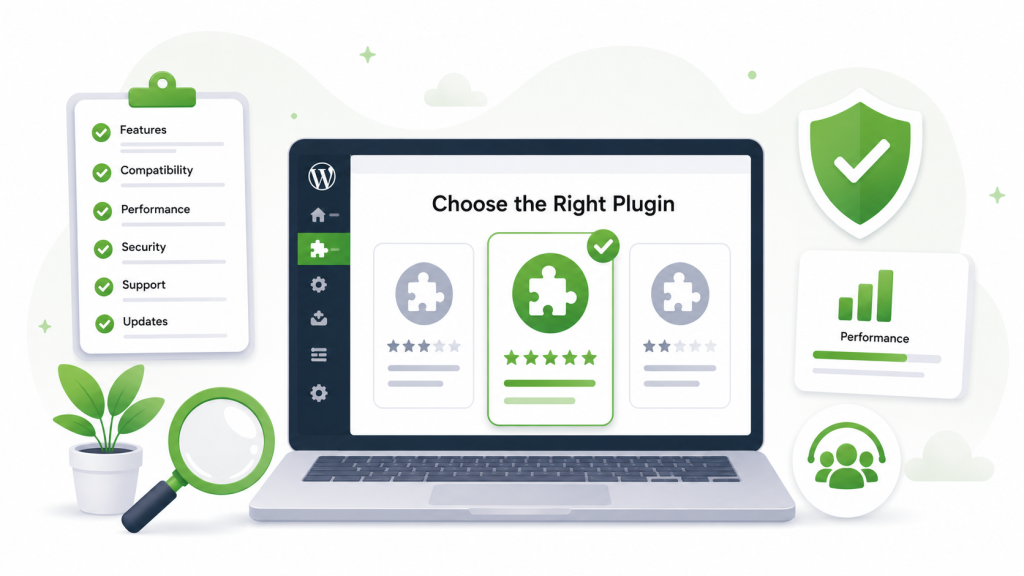
WordPress plugins make it possible to add almost any feature to your website without building it from scratch.
You can use plugins to create contact forms, improve search engine optimisation, accept online payments, sell subscriptions, schedule appointments, protect your website and much more.
The challenge is not finding a plugin. It is choosing the right one.
Several plugins may appear to provide the same functionality, but they can differ significantly in quality, compatibility, performance, support and long-term reliability. Installing the wrong plugin can create unnecessary complexity, slow down your website or introduce conflicts that are difficult to resolve later.
This guide explains how to compare WordPress plugins and choose one that meets your immediate requirements without creating problems for your website in the future.
Start by defining what the plugin needs to do
Before searching for a plugin, clearly define the problem you are trying to solve.
A broad requirement such as “I need a membership plugin” may return dozens of options. A more specific requirement makes it much easier to identify the right solution.
For example, your actual requirements might include:
- Restricting selected pages to logged-in members
- Charging monthly or annual membership fees
- Offering multiple membership levels
- Dripping content over time
- Connecting membership payments to WooCommerce
- Allowing members to manage their subscriptions
- Integrating with an email marketing platform
- Providing members with downloadable resources
Create a short list of essential features before comparing plugins.
Separate these into:
- Must-have features: The plugin cannot meet your needs without them.
- Useful features: Helpful additions that are not essential.
- Future requirements: Features you are likely to need as the website grows.
This helps prevent you from choosing a plugin because it has an impressive feature list while missing the one capability that actually matters to your website.
Avoid choosing the plugin with the most features
A longer feature list does not necessarily mean a better plugin.
A large plugin that attempts to solve every possible problem may include tools you will never use. Those extra features can create a more complicated interface, additional settings and unnecessary code.
A smaller plugin focused on one purpose may be:
- Easier to configure
- Easier to maintain
- Less likely to conflict with other software
- More suitable for your specific workflow
- Simpler for clients or staff to manage
Choose the plugin that most closely matches your requirements rather than the plugin with the greatest number of features.
At the same time, avoid installing several small plugins when one well-maintained plugin can handle the entire requirement efficiently.
The goal is not to install the fewest or the most plugins. It is to create a reliable combination of tools without unnecessary overlap.
Check when the plugin was last updated
A plugin’s update history can provide useful insight into how actively it is being maintained.
Plugins need ongoing development to remain compatible with:
- New WordPress releases
- New PHP versions
- Browser changes
- WooCommerce updates
- Third-party service changes
- New security requirements
A plugin that has not been updated recently is not automatically unsafe or unusable. Some simple plugins may not require frequent changes.
However, an older update date should prompt further investigation, particularly when the plugin controls important functionality.
Ask:
- Is the plugin still being actively maintained?
- Does it support recent WordPress versions?
- Are support requests receiving responses?
- Are compatibility fixes still being released?
- Is the plugin dependent on an external service that may have changed?
Be especially cautious with abandoned plugins that manage payments, customer information, user accounts, file uploads or other sensitive data.
Review WordPress and PHP compatibility
Before installing a plugin, confirm that it is compatible with your website’s current environment.
Check:
- The minimum supported WordPress version
- The version of WordPress it has been tested with
- The minimum PHP version
- WooCommerce requirements, where relevant
- Required extensions or supporting plugins
- Theme or page-builder dependencies
You can find information about your own website under:
WordPress Dashboard → Tools → Site Health → Info
A plugin may fail to activate or behave unpredictably when its requirements are not met.
Compatibility is particularly important when selecting plugins for:
- WooCommerce
- Subscriptions
- Memberships
- Online bookings
- Learning management systems
- Multilingual websites
- Page builders
- Custom themes
- Multisite networks
These tools often interact with several areas of WordPress and may rely on specific versions of related software.
Check whether it works with your existing plugins
A plugin does not operate in isolation.
Before making a decision, consider how it will interact with the rest of your website.
For example:
- Will a checkout plugin work with your payment gateway?
- Will a subscription plugin support your preferred payment method?
- Will a form plugin connect with your CRM?
- Will a product options plugin work with variable WooCommerce products?
- Will a caching plugin work with your hosting environment?
- Will a translation plugin support your page builder?
- Will a membership plugin recognise your existing user roles?
Review the plugin documentation for confirmed integrations and compatibility information.
For critical functionality, do not assume that two plugins will work together simply because they both support WordPress or WooCommerce.
Look for explicit integration documentation or test the combination on a staging website before committing to it.
Look for overlapping functionality
Plugin conflicts often occur when multiple plugins try to control the same feature.
Common examples include installing:
- Two caching plugins
- Multiple SEO plugins
- More than one security firewall
- Several image optimisation plugins
- Multiple redirect managers
- Two plugins that modify checkout fields
- Several plugins that send the same transactional emails
- Multiple plugins that generate schema markup
Overlapping plugins can cause:
- Duplicate functionality
- Conflicting settings
- Repeated database tasks
- Duplicate scripts and styles
- Inconsistent output
- Unexpected errors
- Confusion about which plugin controls a feature
Before installing a new plugin, review what your existing plugins already provide.
You may discover that the required functionality is already available but has not been enabled.
Review ratings, but do not rely on the average alone
Plugin ratings can be useful, but the average score does not tell the entire story.
A plugin with a five-star rating based on six reviews is not necessarily more reliable than a plugin with a slightly lower rating based on thousands of reviews.
When reviewing feedback, consider:
- The total number of ratings
- How recent the reviews are
- Whether the same issue appears repeatedly
- Whether the developer responds to complaints
- Whether negative reviews relate to the free or paid version
- Whether the reviewer’s problem was resolved
- Whether complaints involve support, compatibility or the product itself
Recent reviews are generally more relevant than feedback from several years ago because the plugin may have changed substantially.
Also consider the type of website you operate. A complaint about an advanced feature you do not need may have little impact on your decision, while repeated reports of checkout failures should matter greatly for an online store.
Examine the support history
Good support can be just as important as the plugin itself.
Even a reliable plugin may eventually require troubleshooting, particularly after a major WordPress, WooCommerce or PHP update.
Review the available support options:
- Public support forum
- Email or ticket support
- Documentation
- Setup guides
- Video tutorials
- Developer documentation
- Community groups
- Paid priority support
Look at recent support requests and consider:
- Are questions receiving responses?
- How quickly does the developer reply?
- Are responses helpful and specific?
- Are confirmed bugs acknowledged?
- Are fixes released when required?
- Is the documentation kept current?
A plugin with comprehensive documentation may require less direct support because common setup and troubleshooting questions are already answered.
Remember that access to plugin files and access to vendor support are separate considerations. A GPL-distributed plugin may function without an individual vendor subscription, but direct support, cloud services, template libraries or account-based features may still require a licence from the original developer.
Consider the developer’s reputation
The organisation or developer behind a plugin can provide further confidence.
Look for signs that the developer has:
- An established website
- Clear contact information
- Other actively maintained plugins
- Public documentation
- A transparent changelog
- A clear privacy policy
- An ongoing release history
- A professional support process
This does not mean plugins from independent developers should be avoided. Many excellent WordPress plugins are maintained by small teams or individual developers.
The important question is whether there is evidence of responsible and ongoing maintenance.
Be cautious when you cannot determine who created the plugin, where it came from or whether the files have been modified.
Review the plugin changelog
A changelog records the changes included in each plugin release.
It can reveal whether development is focused on:
- Security fixes
- Compatibility improvements
- New functionality
- Bug fixes
- Performance improvements
- Accessibility
- Code maintenance
- Third-party integrations
A detailed changelog suggests that the developer has a structured release process.
Review several recent entries rather than only the latest version.
Look for warning signs such as:
- Repeated emergency fixes
- Frequent regressions
- Important bugs remaining unresolved
- Long periods without updates
- Breaking changes without migration instructions
Regular releases are generally positive, but an extremely high update frequency can also require consideration if the plugin controls critical website functionality. You need a reliable process for testing and deploying those updates.
Evaluate the plugin’s security
No plugin can provide an absolute guarantee against security issues. However, you can reduce risk by selecting plugins from reputable sources and keeping them updated.
Consider:
- Whether the plugin is actively maintained
- Whether security fixes are released promptly
- Whether it comes from a trustworthy source
- Whether the developer provides a responsible disclosure process
- Whether the plugin requests appropriate permissions
- Whether it handles sensitive information
- Whether it sends data to an external service
Be especially careful with plugins that can:
- Upload or manage files
- Create or modify user accounts
- Process payments
- Access customer information
- Execute custom code
- Connect to external APIs
- Modify login behaviour
- Change user permissions
Only install plugins from sources you trust.
Avoid downloading “nulled,” cracked or anonymously modified plugins. These packages may contain altered code, malicious files or hidden access that is not present in the original plugin.
Review privacy and data handling
Some plugins collect, store or transmit user information.
This may include:
- Names and email addresses
- Form submissions
- Customer details
- Analytics information
- Payment information
- User behaviour
- Uploaded documents
- IP addresses
- Marketing consent
- Account activity
Check whether the plugin:
- Stores information in your WordPress database
- Sends information to an external service
- Uses cookies
- Adds tracking scripts
- Provides data export or deletion tools
- Includes privacy documentation
- Requires changes to your privacy policy
- Offers controls for data retention
This is particularly important for forms, analytics, marketing, live chat, artificial intelligence and customer relationship management plugins.
A plugin may be technically suitable but still conflict with your organisation’s privacy requirements or internal policies.
Consider the effect on website performance
Every active plugin adds some code to your website, but the performance impact can vary considerably.
A lightweight plugin may have almost no noticeable effect. A poorly optimised plugin may add database queries, background tasks, external requests, scripts or styles to every page.
Consider whether the plugin:
- Loads assets only where they are required
- Adds scripts or styles across the entire website
- Creates large database tables
- Runs frequent scheduled tasks
- Makes calls to third-party services
- Processes large amounts of information
- Duplicates functionality already provided elsewhere
- Adds features that will never be used
Do not assume that a popular plugin is automatically fast or that a feature-rich plugin will necessarily be slow.
The most reliable method is to test the plugin on a staging website and compare performance before and after activation.
Review:
- Page loading times
- Database activity
- Server resource usage
- Scheduled tasks
- External requests
- Front-end scripts and styles
- WordPress administration speed
Performance should be considered alongside functionality. A slightly heavier plugin may still be the right choice when it replaces several separate tools or provides essential functionality.
Check whether the plugin is easy to use
A technically capable plugin may still be a poor choice if the people managing the website cannot use it confidently.
Consider:
- Is the setup process clear?
- Are the settings logically organised?
- Is the terminology understandable?
- Can common tasks be completed efficiently?
- Does it provide sensible default settings?
- Are error messages helpful?
- Can different user roles access the appropriate features?
- Is documentation available for non-technical users?
This is especially important for websites managed by clients, marketing teams, store administrators or content editors.
A plugin that requires a developer for every small change may create unnecessary ongoing costs.
When several plugins meet the same technical requirement, usability can be the deciding factor.
Check accessibility
Plugins that generate customer-facing content should be reviewed for accessibility.
This applies particularly to:
- Forms
- Popups
- Menus
- Tables
- Sliders
- Calendars
- Booking systems
- Checkout fields
- Modals
- Interactive content
Check whether visitors can use the plugin-generated interface with:
- A keyboard
- Screen-reading software
- Different zoom levels
- Mobile devices
- High-contrast settings
Also review form labels, validation messages, colour contrast and focus states.
Accessibility should not be treated as a feature that can be added at the end. The plugin’s underlying interface and generated markup can significantly affect how accessible the final website will be.
Understand the free and paid versions
Many WordPress plugins use a freemium model.
The free version may provide basic functionality, while advanced features require a paid licence or additional extensions.
Before choosing the plugin, confirm:
- Which features are included for free
- Which features require the premium version
- Whether pricing is annual, monthly or once-off
- How many websites the licence covers
- Whether renewals are automatic
- What happens when the licence expires
- Whether updates continue without renewal
- Whether support is included
- Whether important integrations cost extra
A free plugin may appear suitable during initial testing, only for you to discover that an essential feature requires a more expensive plan.
Calculate the total cost based on all required features and extensions rather than the advertised starting price.
Consider the long-term cost
The initial plugin price is only one part of its total cost.
Also consider:
- Annual licence renewals
- Paid extensions
- Developer setup time
- Staff training
- Ongoing maintenance
- Migration costs
- Custom integration work
- Hosting requirements
- Replacement costs if the plugin is discontinued
Changing an SEO utility plugin may be relatively simple.
Changing a plugin that manages thousands of subscriptions, bookings, memberships or form submissions can be a major project.
The more deeply a plugin becomes integrated into your website, the more important its long-term reliability becomes.
Check whether your data can be exported
Before choosing a plugin that stores important business information, determine whether you can export that information in a usable format.
This matters for:
- Form submissions
- Orders
- Bookings
- Memberships
- Events
- Learning records
- Customer information
- Directory listings
- Custom fields
Ask:
- Can the data be exported as CSV or another common format?
- Does the plugin use standard WordPress content types?
- Is there a documented migration process?
- What happens to the data if the plugin is deactivated?
- Can another plugin import the exported information?
- Is the information stored locally or only in a third-party service?
Being able to retrieve your data reduces the risk of becoming permanently dependent on one plugin or provider.
Test the plugin before using it on your live website
Whenever possible, test a plugin on a staging website before activating it in production.
Use the staging version to check:
- Installation and activation
- Compatibility with your theme
- Compatibility with existing plugins
- Front-end appearance
- Mobile responsiveness
- Administration usability
- Website performance
- Forms and notifications
- Payment or checkout behaviour
- Data storage
- Deactivation and removal
Create a backup before testing any plugin that changes existing content or database information.
For important functionality, test realistic workflows rather than only confirming that the plugin activates successfully.
For example, when testing a WooCommerce subscription plugin, complete the entire process:
- View the subscription product
- Add it to the cart
- Complete checkout
- Process a test payment
- Confirm the order
- Review customer emails
- Access the customer account
- Test renewal behaviour
- Test cancellation
- Review the administration workflow
This provides a much clearer picture of whether the plugin is suitable.
Avoid installing plugins just to test them on a live website
It can be tempting to install several possible plugins on a live website, activate each one briefly and keep the preferred option.
This can leave behind:
- Database tables
- Settings
- Scheduled tasks
- User roles
- Uploaded files
- Modified content
- Cached information
- Autoloaded options
Deleting a plugin does not always remove everything it created.
Use a staging environment for comparison testing and only install the selected plugin on the live website.
How many WordPress plugins should you install?
There is no universal number of plugins that is appropriate for every WordPress website.
Ten poorly built plugins may cause more problems than 40 well-maintained plugins.
The number matters less than:
- Code quality
- Maintenance status
- Performance
- Compatibility
- Security
- Overlapping functionality
- External requests
- Database usage
- The importance of each plugin
Install a plugin when it provides a clear benefit and is the most appropriate way to deliver the required functionality.
Remove plugins that:
- Are no longer being used
- Duplicate another feature
- Have been abandoned
- Create unresolved errors
- Are no longer compatible
- Were installed only for temporary testing
Inactive plugins should also be reviewed and removed when they are no longer required.
Using GPL Kit to find the right plugin
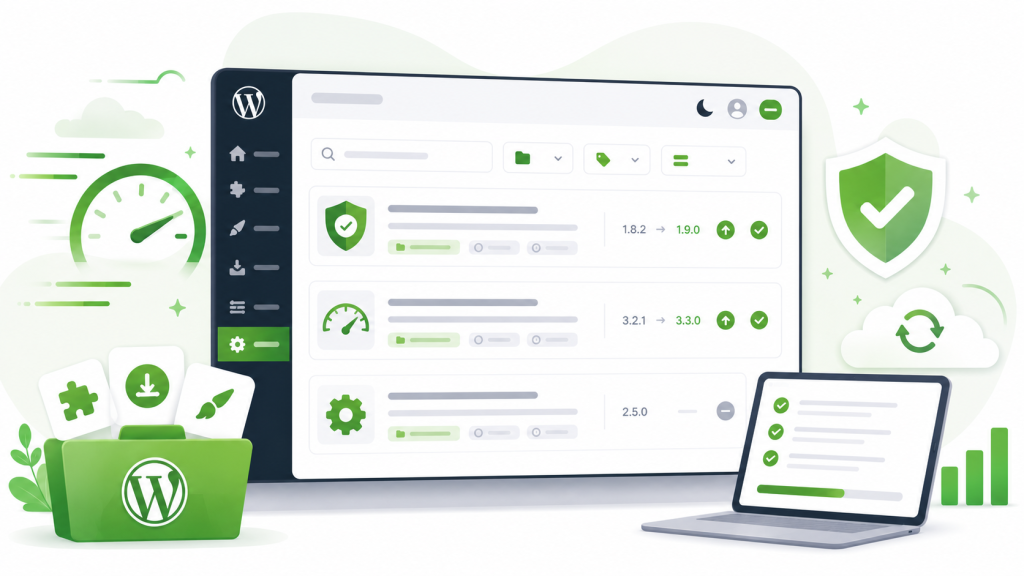
GPL Kit provides a searchable catalogue of premium GPL WordPress plugins and themes directly inside your WordPress dashboard.
Instead of visiting multiple websites and manually comparing downloads, you can browse available products using:
- Keyword search
- Categories
- Tags
- Product filters
- Installed version information
- Catalogue version information
- Update indicators
- Plugin detail views
GPL Kit also includes an experimental AI catalogue assistant designed to help you find suitable plugins by describing what you need in plain language.
For example, you could ask:
- “I need a plugin for recurring WooCommerce payments.”
- “Find a plugin that adds conditional product options.”
- “I need to restrict content to paying members.”
- “Which plugins can improve WooCommerce checkout?”
- “Find a booking plugin that supports online payments.”
The assistant can help narrow the catalogue, but the final decision should still consider compatibility, security, performance, support and the specific needs of your website.
WordPress plugin selection checklist
Before installing a plugin, ask:
Functionality
- Does it provide every essential feature?
- Are unnecessary features likely to create complexity?
- Will it support future requirements?
- Does another installed plugin already provide this functionality?
Compatibility
- Does it support your WordPress version?
- Does it support your PHP version?
- Is it compatible with your theme?
- Does it work with your important plugins and integrations?
- Does it support your current WooCommerce version?
Maintenance and support
- Is it actively maintained?
- When was it last updated?
- Is there a clear changelog?
- Are support questions being answered?
- Is current documentation available?
Security and privacy
- Does it come from a trusted source?
- Does it process sensitive information?
- Does it send data to an external service?
- Are its permissions appropriate?
- Will you need to update your privacy documentation?
Performance
- Does it load unnecessary scripts or styles?
- Does it create frequent background tasks?
- Does it make external requests?
- Has it been tested on staging?
- Does it duplicate existing functionality?
Cost and longevity
- What is the full annual cost?
- Are essential features sold separately?
- What happens when the licence expires?
- Can your data be exported?
- How difficult would it be to replace later?
Usability
- Can your team manage it?
- Is the interface clear?
- Is it accessible?
- Are common tasks easy to complete?
- Does it provide useful documentation?
Choose plugins for the website you actually need
The right WordPress plugin is not necessarily the most popular, the cheapest or the one with the longest feature list.
It is the plugin that:
- Solves your specific problem
- Works with your existing website
- Is actively maintained
- Comes from a trustworthy source
- Performs reliably
- Can be managed by your team
- Supports your longer-term plans
Taking time to compare plugins before installing them can prevent performance issues, compatibility problems and expensive migrations later.
Start with a clear list of requirements, investigate the available options and test important plugins in a safe environment before using them on your live website.
GPL Kit makes it easier to search, compare, install and manage premium GPL plugins from your WordPress dashboard.
Find the right plugin for your next WordPress project with GPL Kit.